C) Write a highly specific, custom-tailored boilerplate generator that does 80% of the work and needs only a day or two to implement.

- 7 Posts
- 60 Comments
Joined 5 months ago
Cake day: June 2nd, 2024
You are not logged in. If you use a Fediverse account that is able to follow users, you can follow this user.
 7·27 days ago
Not in markdown(Pressed Shift+Return after every word.)
Not in markdown.
But it works in other word processors (like Word, libreoffice) that distinguish between line breaks and paragraph breaks.
Example: Type
Once upon a midnight dreary
While I was pondering, weak and weary
Over many a quiant and curious volume of forgotten lore
To get:
Once upon a midnight dreary

While I was pondering, weak and weary

Over many a quiant and curious volume of forgotten lore(You can highlight the source code to find the extra spaces at the end of each line). Note that this is different from paragraphs, which add spacing between them:
Once upon a midnight dreary While I was pondering, weak and weary Over many a quiant and curious volume of forgotten loreOnce upon a midnight dreary
While I was pondering, weak and weary
Over many a quiant and curious volume of forgotten lore
This is how markdown works. There is no way to disable that. This is an old convention from when text editors didn’t wrap lines automatically and enables you to write long paragraphs of text, breaking the lines as it makes sense to you, without creating a paragraph each time.
See the Lemmy help page on markdown or the Markdown Guide.
Coding must be a nightmare if you’re choosing programming languages at random 😱
But you must also be learning quite a lot.
Programs aren’t written by a single team of developers that speak the same language. You’d be calling a library by a Hungarian with additions from an Indian in a framework developed by Germans based on original work by Mexicans.
If no-one were forcing all of them to use English by only allowing English keywords, they’d name their variables and functions in their local language and cause mayhem to readability.
[Edit:] Even with all keywords being forced to English, there’s often half-localized code.
I can’t find the source right now, but I strongly believe that Steve McConnell has a section in one of his books where he quotes a function commented in French and asks, “Can you tell the pitfall the author is warning you about? It’s something about a NullPointerException”. McConnell then advises against local languages even in comments
 3·28 days ago
Even international waters (or, as I just googled, the “high seas”, as is the more appropriate term) have laws. Usually you are subject to the laws of the ship’s flag state.
Too bad being dead gives the −100% strength debuff.
[Edit:] Sorry, I didn’t realize that this was the thread that took “die in funeral” part literally.
Not the corpse, but those who helped him.
Heavily depends on the jurisdiction that applies to you when you die. People will be better able to help you if you disclose that.
 19·1 month ago
I work in IT. We get notified when people leave.
The cruelest thing in my company is when we get to know before the person in question…
 1·2 months ago
maybe everyone here is just a rude little shit.
Or maybe you’re just a snowflake that can’t handle criticism.
 4·2 months ago
Just to provide some data on the radiation dose. It’s everyone’s own decision whether a ‘willy-nilly’ PET scan is worth it.
From the English Wikipedia:
FDG, which is now the standard radiotracer used for PET neuroimaging and cancer patient management, has an effective radiation dose of 14 mSv.
The amount of radiation in FDG is similar to the effective dose of spending one year in the American city of Denver, Colorado (12.4 mSv/year). […T]he whole body occupational dose limit for nuclear energy workers in the US is 50 mSv/year.
https://en.wikipedia.org/wiki/Positron_emission_tomography#Safety
From the German Wikipedia:
Es ist bei einer Strahlendosis von 1 Sievert (Sv), der 100 Menschen ausgesetzt sind, mit 5 Todesfällen durch Strahlenkrebs zu rechnen […]. Man müsste also 100.000 PET-Untersuchungen durchführen, um 35 Todesfälle an Strahlenkrebs (nach einer mittleren Latenzzeit von etwa 15 Jahren für Leukämie und etwa 40 Jahren für solide Tumoren) zu verursachen, das heißt etwa eine auf 3000 Untersuchungen
If 100 people received a radiation dose of 1 Sievert (Sv), one would expect 5 deaths due to radiation-induced cancer […]. One would need 100,000 PET scans in order to cause 35 cancer deaths (after a median wait duration of 15 years for leucemia and 40 years for solid tumors), which is about 1 in 3000 scans.
https://de.wikipedia.org/wiki/Positronen-Emissions-Tomographie#Strahlenexposition
Is this not rude:
I checked the code and I’m appalled. There are more BLOBs than source code
No. The commenter is voicing their own feelings and explains why they have them. There is neither blaming nor rudeness here.
And this:
I understand that removing BLOBs isn’t a priority over new and shiny features. But due to recent events, this should be rethought.
It would have been nice if you had explained why you think this is rude. The author expresses understanding that the maintainers’ priorities don’t align with the author’s. This seems to be an uncontroversial statement to me.
Then the author explains (I agree, it’s more a hint than an explanation) why they think the priorities should be changed. In my view their argument is sound. Again, there is no blaming or rudeness here.
They should have opened with a complement
I assume you mean “compliment”.
I’ve often heard of the “sandwich technique” – start with a compliment, then voice criticism, end with another positive thing. I find this is an appropriate procedure when voicing open feedback, that is, good things and bad things. However, this is a Github issue. Its whole point is to point out a perceived problem, not to give the maintainers a pat on the back or thank them.
I cannot fathom what in this issue description gives rise to your concern. It’s worded very calmly, clearly explaining why the author thinks these BLOBs shouldn’t be there, expressing an understanding that it’s not a top priority and even closing with a thank you.
You must have exceptionally competent first-level support.
 111·2 months ago
A text editor that doesn’t assume that the keys on my keyboard are in the same order as yours.
 1·3 months ago
Aww. I confused “communities” for “instances” when I read the title. Thanks for pointing it out.

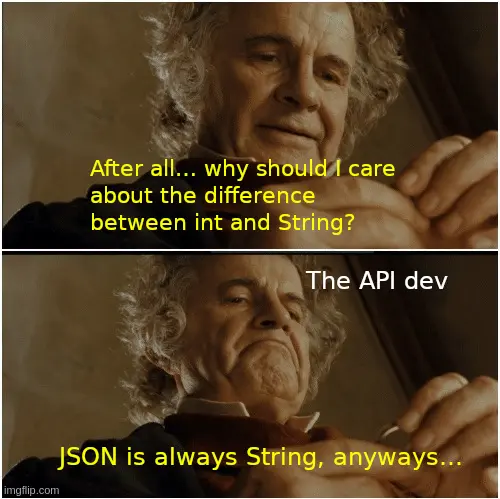
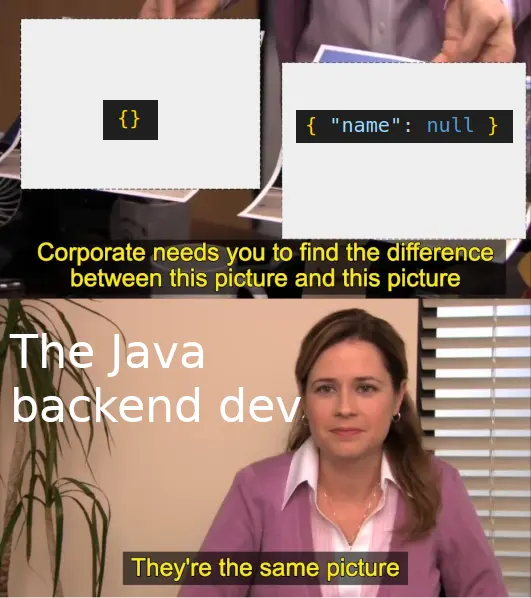
Completely depends on how often you need to write boilerplate code, and how error-prone it is.
After writing hundreds of instances of ‘fetch this from the server and show an error if it doesn’t work’, I finally wrote a helper for that. It took 2 hours, shouts at me if I use it wrong, and instantly makes my classes easier to read because all the boilerplate is gone. As an added bonus, the invocation is so small that Copilot can write it error-free, which it couldn’t before.
So fetching things is now a thing of a few seconds instead of one minute with a chance of making a mistake. I say it’s worth it.